Tracking jobs
The board
The board is Trackur's default view: one column for each of the eight pipeline stages, with your jobs shown as cards you can drag between them.
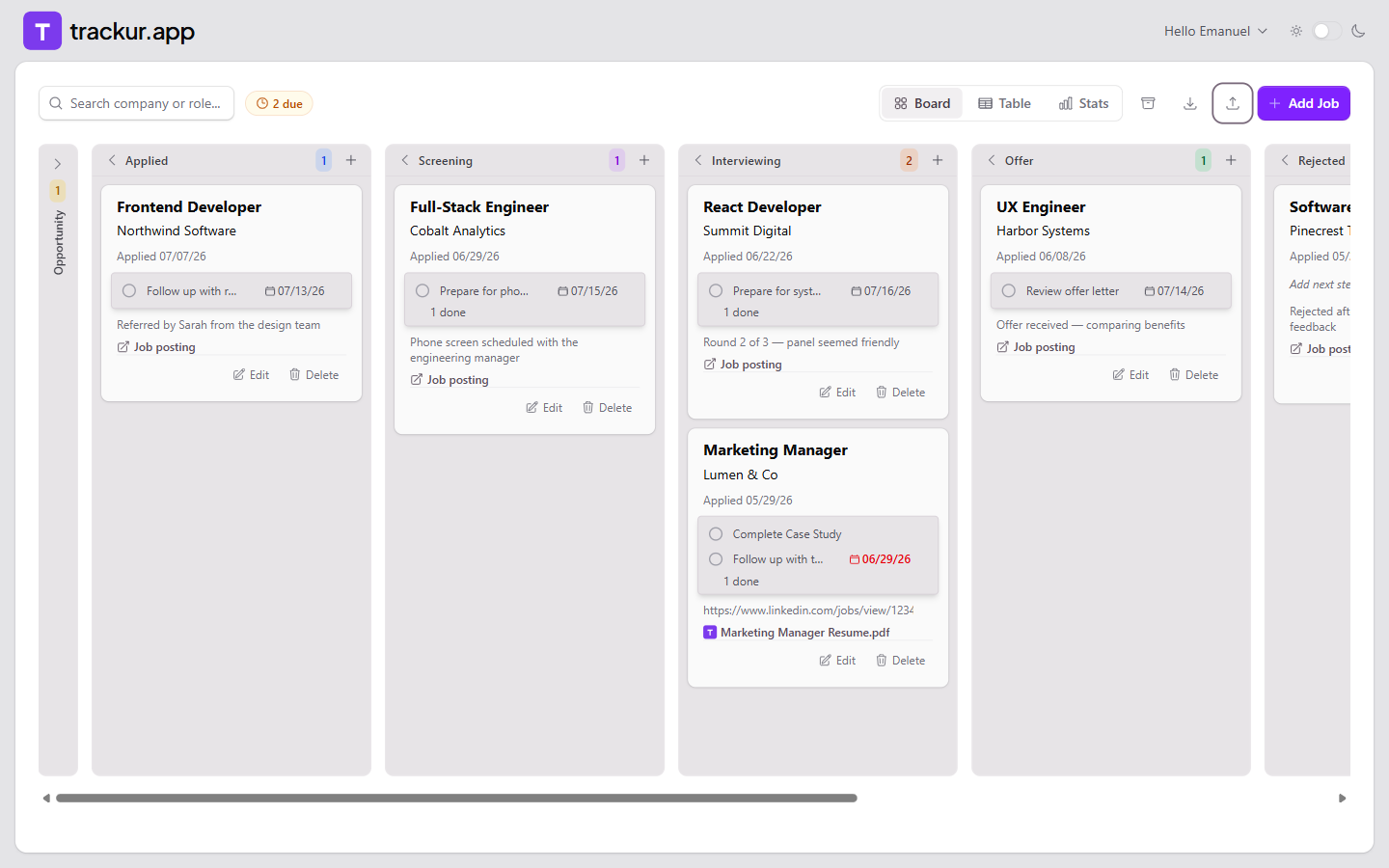
The eight stages
Each column is one stage, and each stage has its own badge color used throughout Trackur:
| Stage | Badge color |
|---|---|
| Opportunity | Yellow |
| Applied | Blue |
| Screening | Purple |
| Interviewing | Orange |
| Offer | Green |
| Rejected | Red |
| Ghosted | Gray |
| Accepted | Emerald |
On desktop board cards the badge itself is omitted — the column a card sits in already tells you its stage. Badges appear on mobile cards, in Table view, and in the Edit panel.
Where's Opportunity?
The Opportunity column starts collapsed by default, as a thin strip at the left edge of the board. Click the strip to expand it.
What's on a card
Each card shows the role, the company, and "Applied <date>" when a date is set (hovering shows a Set applied date prompt otherwise). Below that, a summary box lists up to three open next steps with tap-to-complete circles and due-date chips — overdue dates show in red, and when everything is finished the box reads "All steps done". Cards can also carry a two-line notes preview, a download link for an attached resume, and a Job posting link that opens in a new tab.
Hovering most fields on a card reveals a pencil icon for inline editing, and the Edit button opens the full Edit panel.
Moving jobs between stages
On desktop, drag a card and drop it on another column — the target column highlights while you hover, and a toast confirms "Job moved to <stage>". The move applies instantly; if saving fails, the card snaps back and a toast reads "Failed to move job: <reason>". You can drop cards onto collapsed columns too.
Drag-and-drop isn't available on touch screens. On mobile, tap the stage badge on a card to change its stage — see Trackur on mobile.
Collapsing and expanding columns
Click a column header's chevron (or the header title) to collapse the column into a thin vertical strip showing the count badge and the stage name rotated sideways. Click the strip to expand it again. Your collapse choices are saved in your browser, so they persist across visits but won't follow you to another device.
Adding a job from a column
Every expanded column header has a + button next to the count badge (labeled "Add job to <stage>"). It opens the Add Job panel with that stage preselected, so you skip the stage dropdown. Collapsed columns hide the button — expand the column first.
Search and the due pill
The search box (placeholder "Search company or role...") filters cards as you type, matching text anywhere in the company or role. There's no stage filter dropdown on the board — every stage already has its own column.
When at least one active job has a step due today or earlier, an amber pill appears in the toolbar showing a clock icon and "<n> due". Click it to show only those jobs; click again to show everything. See Next steps & due dates.
Empty states
An empty column shows "No jobs". With no jobs at all, the main area invites you to click Add Job to get started. If jobs exist but nothing matches your search or filters, you'll see "No jobs match your current search or filter." with a Clear filters button that resets the search, stage filter, due-only filter, and archived view at once.