Settings
Account & settings
The Settings panel is where you edit your name, manage integrations, and control notifications. This page also covers the user menu and which preferences are saved on your device rather than your account.
Opening the Settings panel
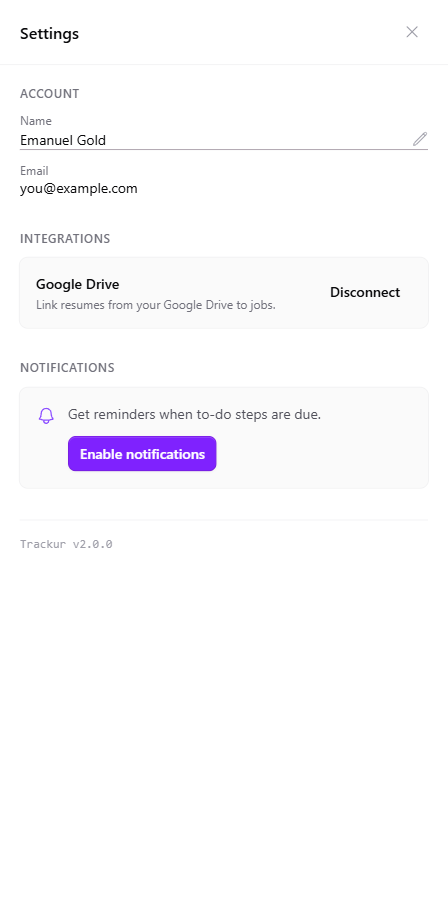
Open the user menu — the Hello {your first name} button at the top-right on desktop, or the gear icon on mobile — and choose Settings. The Settings panel slides in from the right (full-screen on mobile) and contains three sections: Account, Integrations (shown when the Google Drive feature is available), and Notifications.
Close it with the X button, the Esc key, or by clicking the dimmed area outside the panel.
Account
The Account section shows your name and email.
Editing your name. Hover over your name and a pencil icon appears. Click it to switch to First Name and Last Name fields with Cancel and Save buttons. Both fields are required — emptying one shows "First name is required" or "Last name is required", and Save stays disabled until both have text. First name can be up to 40 characters and last name up to 80.
Email is read-only. Your email comes from the provider you sign in with (Google, GitHub, or LinkedIn) and can't be changed inside Trackur.
If your name is missing
If your profile is missing a first or last name, Settings opens directly into the name editor and won't let you close the panel — the X button and backdrop are ignored, and Cancel is hidden — until you save a valid first and last name.
Integrations
When the Google Drive feature is available, the Integrations section shows a Google Drive card with a Connect or Disconnect button. Connecting opens a Google consent popup and is separate from signing in with Google — Trackur can only access the specific files you pick, never your whole Drive. Disconnecting shows a "Google Drive disconnected" toast and keeps your linked resumes in the library, though they can't be downloaded until you reconnect.
See Google Drive integration for the full details.
Notifications
The Notifications section lets you enable browser reminders for next steps that are due. Press Enable notifications to trigger the browser permission prompt; once granted, three toggles appear — Due today, Overdue, and Due tomorrow — which save to your account and follow you across devices.
See Notifications for how and when reminders fire.
Finding your app version
The footer of the Settings panel shows the app version as "Trackur v{version}". Include this version number when you report a problem — it tells support exactly which build you're running.
The user menu
Besides Settings, the user menu contains:
- A "Signed in as" header showing your email
- Manage Resumes — opens the Manage Saved Resumes panel
- Privacy Policy — opens Trackur's privacy policy in a new tab
- Sign out — ends your session immediately and returns you to the login screen; there is no confirmation dialog
On mobile, the menu sits behind a gear icon and also contains the dark mode toggle (on desktop, that toggle lives in the header itself). See Trackur on mobile for the differences.
Preferences saved on your device
Some preferences are saved in your browser rather than your account, so they won't follow you to another device or browser:
| Preference | Where you set it |
|---|---|
| Dark mode | Header switch (desktop) or gear menu (mobile) |
| Active view (Board, Table, or Stats) | View toggle in the toolbar |
| Table sort column and direction | Table column headers |
| Collapsed board columns | Stage headers on the board |
Dark mode follows your operating system's theme until the first time you toggle it manually — after that, your choice wins on that device. In contrast, the notification toggles above are stored with your account and apply everywhere you sign in.