Tracking jobs
Table view
Table view shows all your jobs as a sortable list — useful when you want to scan many jobs at once or sort by a specific field. It sits alongside the board and Stats view in the view toggle.
Switching to Table view
Use the three-way Board / Table / Stats toggle in the toolbar (on mobile, it lives in the ... overflow menu under the View heading). Your choice is saved in your browser, so Trackur reopens in whichever view you used last — though it won't follow you to another device.
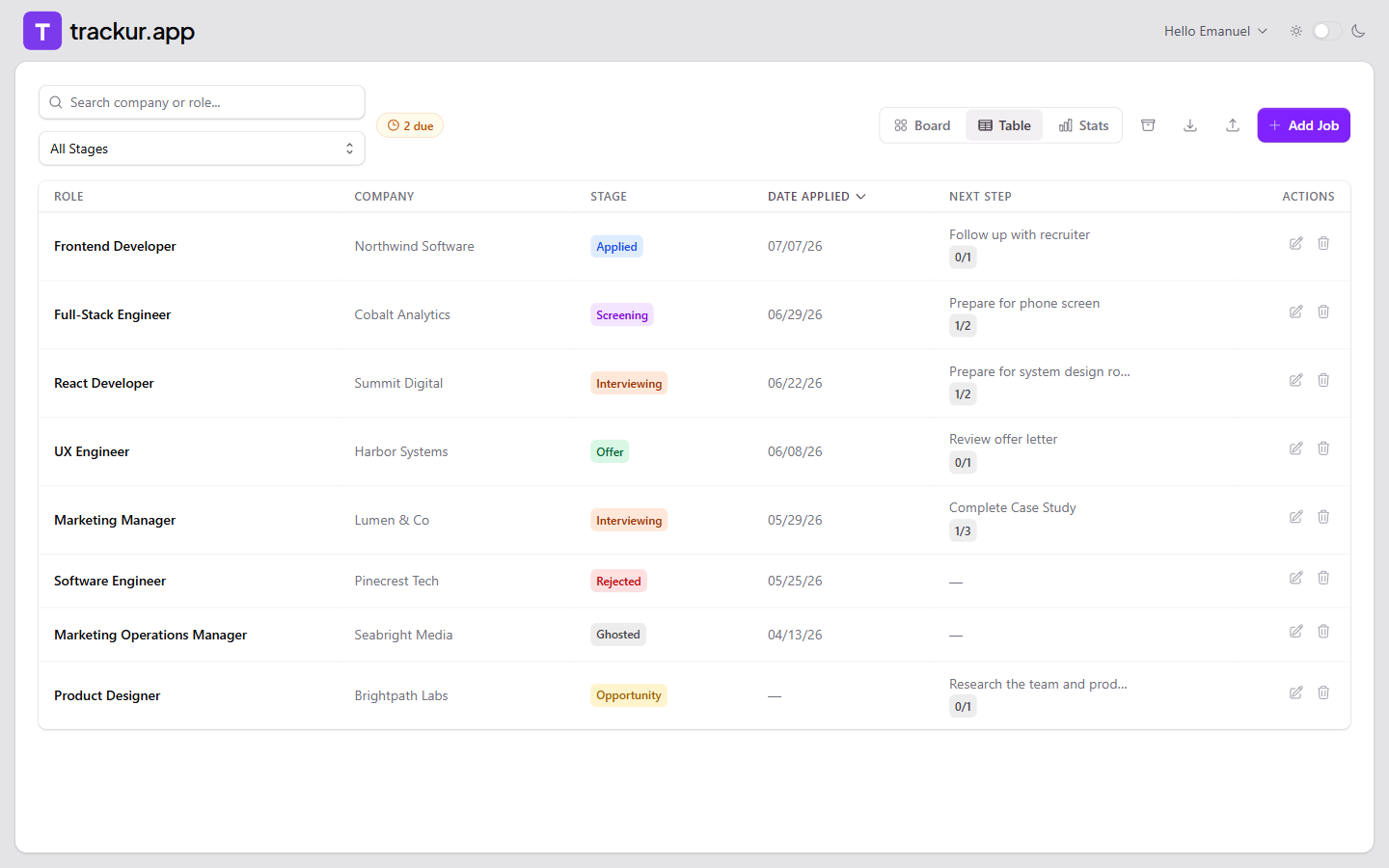
Columns
The table has six columns:
| Column | Shows |
|---|---|
| Role | The job title |
| Company | The company name |
| Stage | The stage as a colored badge |
| Date Applied | The applied date, or a dash if unset |
| Next Step | The oldest open step, plus a done/total badge (e.g. 2/5) |
| Actions | A pencil icon to open the Edit panel and a trash icon to delete |
The Next Step cell shows the job's oldest open next step. If its due date has passed, the text turns red. When every step is complete, the cell reads "All done" in green; jobs with no steps show a dash. Clicking the cell opens the Edit panel, where the full checklist lives.
You can edit Role, Company, Stage, and Date Applied directly in the table — hover a cell to reveal a pencil icon, click to edit, and the change saves when you click away or press Enter (Escape cancels). See Editing jobs for details.
If there are no jobs to show, the table area reads "No jobs to display."
Sorting
Click any column header (except Actions) to sort by it. Clicking a new column sorts ascending; clicking the active column again flips the direction. The active column header and its up/down chevron are highlighted in mauve so you can see the current sort at a glance.
- Default sort: Date Applied, newest first.
- Next Step sorts alphabetically by each job's oldest open step.
Your sort sticks around
The sort column and direction are saved in your browser — they survive switching to the board and back, and page reloads. They won't follow you to another device.
Filtering by stage
Table view has a stage filter that the board doesn't need (every stage already has its own column there). The dropdown offers All Stages plus each of the eight stages, and narrows the table to a single stage.
- Desktop: the dropdown sits next to the search box while Table view is active.
- Mobile: it's in the ... overflow menu under the Filter Stage heading.
The search box, the amber due pill, and the archived-jobs toggle all work in Table view too, the same way they do on the board. The stage filter resets when you reload the page.
Table view on mobile
On phones, the table is replaced by a list of tappable cards, each showing the role, company, stage badge, applied date, and the next open step with its done count. There is no inline editing or per-row delete on mobile — tap a card to open the Edit panel instead. The list uses the same sort as the desktop table, but there are no tappable column headers — set your sort on desktop, or use the default. See Trackur on mobile for the full mobile picture.