Resumes
Resume library
Trackur keeps a small library of resume files that you can attach to any job. You can upload up to 10 files to Trackur directly, and link as many more as you like from Google Drive.
The Manage Saved Resumes panel
Open the panel from the user menu by choosing Manage Resumes. It also opens from the Edit panel's Attach Resume menu — see Attaching resumes to jobs. The panel slides in from the right on desktop and fills the screen on mobile; close it with the X button, Esc, or by clicking the dimmed backdrop.
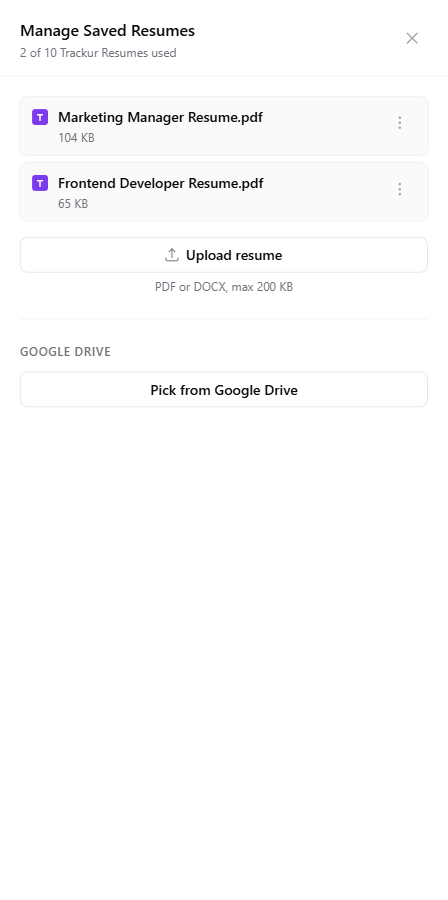
The header shows a counter like "3 of 10 Trackur Resumes used". Each Trackur resume row shows its name (the label when one is set, with the original filename in smaller text beneath it), the file size, and a ⋮ menu with Rename, Download, and Delete. Files linked from Google Drive appear in a separate Google Drive section below, with Download and Remove in their ⋮ menu.
Uploading a resume
Click Upload resume and pick a file. The helper text below the button spells out the rules: "PDF or DOCX, max 200 KB". While the file uploads, the button reads Uploading....
| Limit | What you see if you exceed it |
|---|---|
| PDF or DOCX only | "Only PDF and DOCX files are allowed" |
| 200 KB per file | "File must be under 200 KB" |
| 10 Trackur-hosted resumes | "Resume library is full (max 10)" |
At 10 files the upload button is disabled. Google Drive resumes never count toward the 10-file limit.
You can also upload without opening the panel — the Attach Resume section in the Add Job and Edit panels has its own upload option, which attaches the new file to that job automatically. See Attaching resumes to jobs.
Renaming a resume
Choose Rename from a resume's ⋮ menu to give it a label (the field placeholder reads "Add a label..."). Press Enter or click away to save; Escape cancels. The label replaces the filename everywhere in the app, with the original filename shown in smaller text beneath it. Clear the label to go back to the original filename.
Labels change the download filename
When a resume has a label, downloads save as the label plus the original file extension — for example a file uploaded as resume_v2.pdf and labeled "Frontend Resume" downloads as Frontend Resume.pdf.
Google Drive resumes cannot be renamed — their ⋮ menu has no Rename option.
Downloading a resume
Choose Download from a resume's ⋮ menu. You can also download from a job: click the resume link on a board card, or use Download Resume in the Edit panel's Attach Resume menu. Downloads work for both Trackur and Google Drive resumes, though Drive downloads stop working while Drive is disconnected — see Google Drive integration.
Deleting vs. removing from a job
These are two different actions:
- Delete (in the Manage Saved Resumes panel) removes the file from your library entirely.
- Remove From Job (in the Edit panel's Attach Resume menu) only detaches the resume from that one job — the file stays in your library. See Attaching resumes to jobs.
When you choose Delete on a Trackur resume, a confirmation asks "Delete this resume? Jobs using it will be unlinked." For a Google Drive resume the action is labeled Remove, and the confirmation reads "Remove this Google Drive resume? Jobs using it will be unlinked. The file will remain in your Drive."
In both cases, any jobs that had the resume attached are unlinked automatically — you don't need to clean them up yourself.
Deleting a Trackur resume is permanent
Deleting a Trackur-hosted resume permanently removes the file from Trackur's storage. Removing a Google Drive resume is gentler: it only removes Trackur's link, and the file stays untouched in your Google Drive.
Google Drive resumes
Once you connect Google Drive, you can pick PDF and DOCX files straight from your Drive and use them like any other resume — with no size limit and no count limit. The files stay in your Drive, and Trackur can only access the specific files you pick. If Drive is disconnected, linked resumes stay in your library but appear dimmed with a notice: "Reconnect Google Drive to download or pick files." For connecting, picking, and disconnecting, see Google Drive integration.