Tracking jobs
Editing jobs
Every detail of a job can be changed after you add it — either in the Edit panel, which shows all fields in one place, or inline, right on a board card or table cell. Either way, there is no Save button: each field saves on its own the moment you finish editing it.
Opening the Edit panel
There are three ways in:
- On the board, press Edit at the bottom of a card.
- In Table view on desktop, press the pencil icon in the row's Actions column.
- On mobile, tap anywhere on a card in the Table view list.
The panel slides in from the right on desktop and fills the screen on mobile (see Trackur on mobile). Close it with the X button, the Esc key, or by clicking the dimmed backdrop.
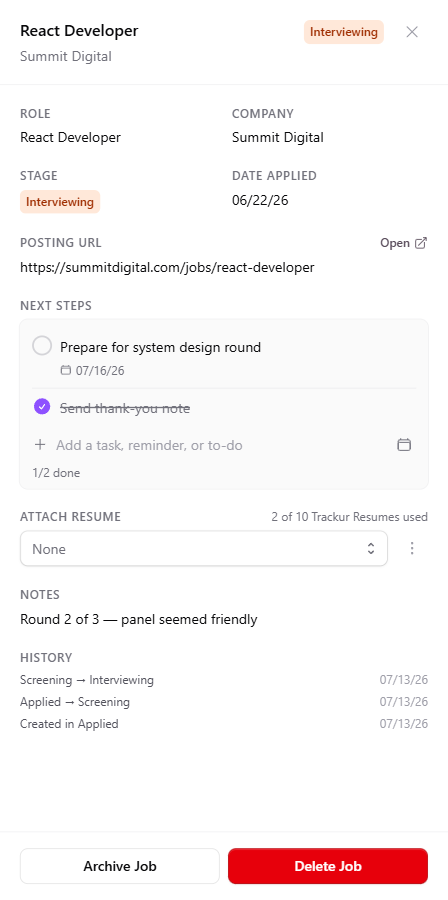
What's in the panel
The header shows the job's role, company, and stage badge. The body contains:
- Role and Company — required, up to 100 characters each.
- Stage — a dropdown of the eight stages. Changing it here is recorded in the job's history.
- Date Applied — a date picker.
- Posting URL — the job posting's web address, up to 500 characters. Once set, an Open link appears beside the label. See Job posting links.
- Next Steps — the job's to-do checklist. See Next steps & due dates.
- Attach Resume — link a file from the resume library to this job. See Attaching resumes to jobs.
- Notes — free text up to 250 characters, with a live character counter.
- History — a read-only timeline of the job's stage changes, newest first. It appears once the job has at least one recorded entry. See Stage history.
The footer holds Archive Job (or Unarchive Job) and a red Delete Job button. Archiving hides a job without losing anything; deleting is permanent. See Archiving & deleting.
How saving works
Hover over a field and a pencil icon appears; click to start editing, with the current text preselected. Small green check (save) and red X (cancel) buttons sit beside the input. To commit a change:
- Enter saves (except in the multi-line Notes field), and so does clicking or tapping anywhere outside the field.
- Escape cancels and restores the previous value.
Each save shows a "Job updated" toast. Changes apply instantly; if saving fails, the field rolls back and an error toast explains why.
No Save button
The Edit panel never asks you to save. Every field commits individually the moment it loses focus, so you can change one thing and close the panel without losing anything.
Editing inline on cards and table cells
You don't need the Edit panel for quick fixes. The same hover-pencil editing works directly on board card fields (role, company, applied date, notes, next-step text) and on desktop table cells (Role, Company, Stage, Date Applied). Dragging a card is disabled while one of its fields is being edited. The mobile Table view list has no inline editing — tapping a card opens the Edit panel instead.
Validation and limits
- Role and Company can't be saved empty. If you clear one and save, the change is quietly discarded and the original value kept — no error appears. The same applies to a next step's text.
- Dates must fall between the years 2000 and 2099. In the Edit panel, an out-of-range year is rejected with the message "Sorry, time traveller! Year must be between 2000 and 2099." (it clears itself after 5 seconds).
- Character limits: Role and Company 100, Notes 250, Posting URL 500, next-step text 150. The Notes counter turns yellow when the field is three-quarters full and red when 15 or fewer characters remain; single-line fields show "Max 100 characters." (or the matching number) when you hit the cap.