Getting started
Adding your first job
Every job you track in Trackur starts in the Add Job panel — a slide-out form where you enter the role, the company, and anything else you know so far. Only two fields are required, so logging an application takes seconds.
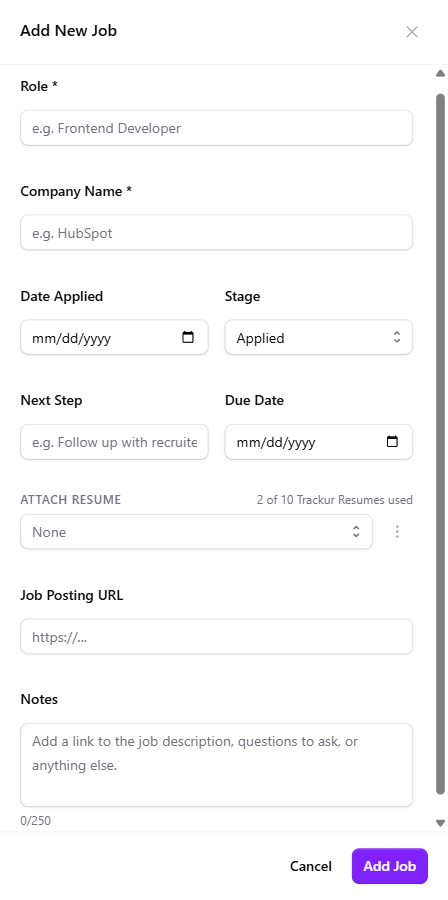
Opening the Add Job panel
There are three ways to open it:
- Toolbar button (desktop) — press the violet Add Job button at the right end of the toolbar.
- Floating + button (mobile) — tap the round violet + button at the bottom-right of the screen. It hides while the panel is open and comes back when you close it. See Trackur on mobile for the full mobile layout.
- A column's + button — every expanded stage column on the board (and every stage row on mobile) has a small + button next to the job count. It opens the same panel with that column's stage already selected, so you can skip the Stage dropdown. Collapsed desktop columns hide the + — expand the column first.
Filling in the form
The panel is titled Add New Job. Only Role and Company Name are required — everything else can wait until later, since every field is editable afterwards in the Edit panel.
| Field | Details |
|---|---|
| Role * | Required. Placeholder "e.g. Frontend Developer". Max 100 characters ("Max 100 characters." appears at the limit). |
| Company Name * | Required. Placeholder "e.g. HubSpot". Max 100 characters. |
| Date Applied | Optional date picker. Accepts years 2000–2099. |
| Stage | Dropdown with all eight stages; defaults to Applied unless you opened the panel from a column's +. |
| Next Step | Placeholder "e.g. Follow up with recruiter". Together with Due Date, this becomes the job's first to-do — see Next steps & due dates. |
| Due Date | Optional due date for the next step. Accepts years 2000–2099. |
| Attach Resume | Pick a resume from your library, or upload one on the spot. Clear selection detaches it. See Attaching resumes to jobs. |
| Job Posting URL | Placeholder "https://...". Bare domains are fixed up on save — typing "example.com/job" saves as "https://example.com/job". Max 500 characters. See Job posting links. |
| Notes | Placeholder "Add a link to the job description, questions to ask, or anything else." Max 250 characters, with a live counter that turns yellow as you approach the limit and red when 15 or fewer characters remain. |
Saving the job
Press Add Job in the footer to save, or Cancel to close without saving. On success:
- The panel closes and the new job appears on the board in its stage (or in Table view if that's your active view).
- A toast reads "Job added".
- Trackur records a "Created in {stage}" entry in the job's stage history.
If saving fails, a toast reads "Failed to add job:" followed by the reason, and you can try again.
The form remembers what you typed
If you close the panel without pressing Add Job, your in-progress values are kept and reappear the next time you open it — handy if you need to check something mid-entry. The one exception is the Stage field, which gets overwritten when you reopen the panel via a column's + button. The remembered values are cleared when the form is submitted or the page is reloaded.
Already tracking applications somewhere else? You can bring in a whole list at once with Importing from CSV.