Getting started
Welcome
Trackur is a free job-application tracker. This guide covers everything it can do — no setup, no configuration, just sign in and start tracking.
Creating your account
Sign in with Google, GitHub, or LinkedIn — no passwords — and complete the one-time account setup.
The board
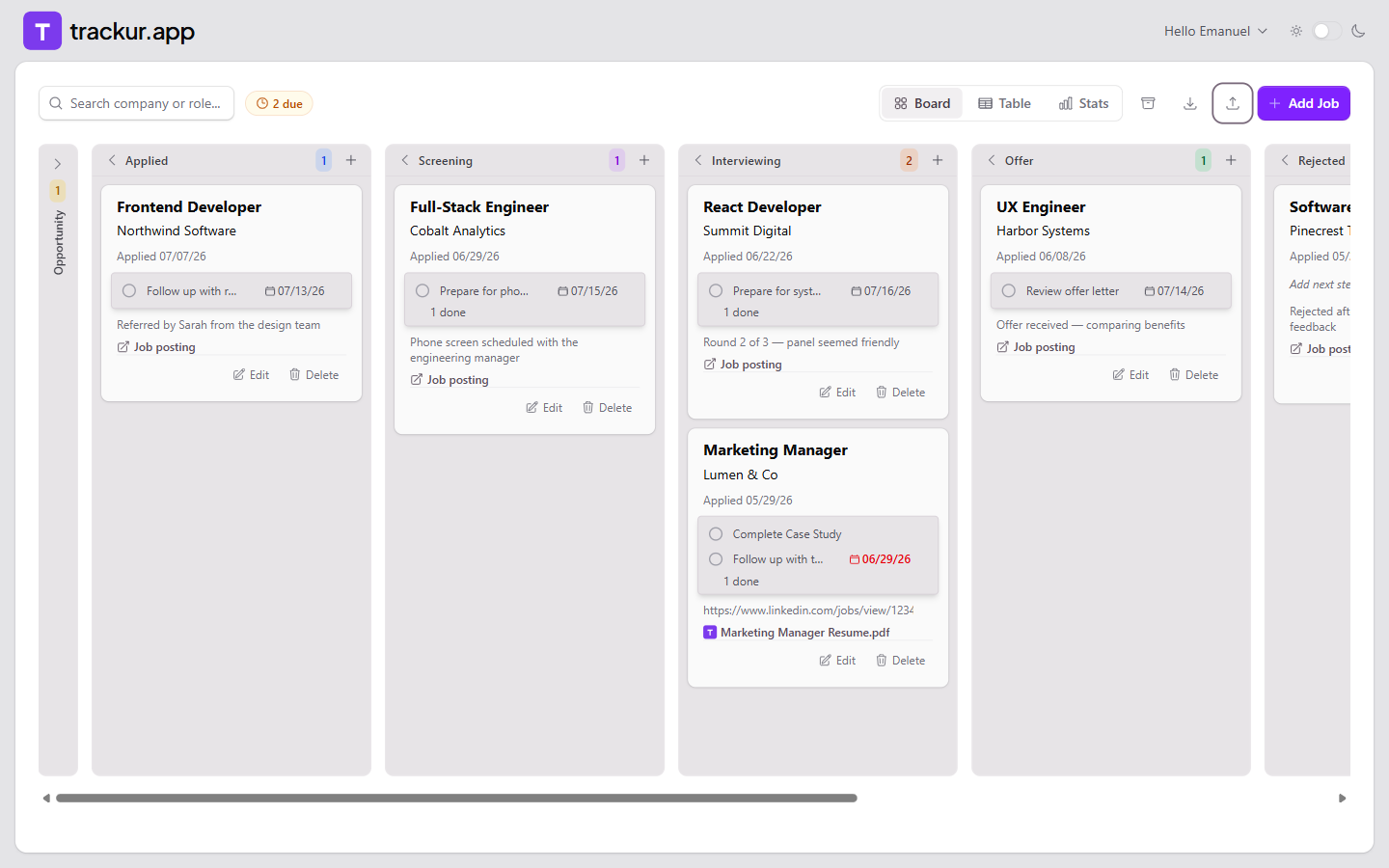
Move applications through eight stages on a drag-and-drop board, from Opportunity to Accepted.
Resumes
Keep a library of resume files — uploaded to Trackur or linked from Google Drive — and attach them to jobs.
Stats & history
See applications per week, your stage distribution, and how long jobs spend in each stage.
What is Trackur?
Trackur (my.trackur.app) replaces the spreadsheet you were using to track job applications. Every application becomes a card that moves through a pipeline of stages — Opportunity, Applied, Screening, Interviewing, Offer, Rejected, Ghosted, and Accepted — and each card carries the details that matter: dates, next steps with due dates, notes, a link to the posting, and the resume you used.
Your jobs are shown in three views, and you can switch between them at any time with the view toggle: the board (a drag-and-drop pipeline), Table view (a sortable list), and Stats view (charts and totals across your whole search).
Quick start
- Sign in. Go to my.trackur.app and continue with Google, GitHub, or LinkedIn. Your first sign-in creates your account — see Creating your account.
- Add a job. Press Add Job and fill in the role and company — everything else is optional. See Adding your first job.
- Work the board. Drag cards between stages as things progress, and give each job a next step with a due date so nothing slips.
Already tracking in a spreadsheet?
You can bring your existing list with you — export it as a CSV and use Importing from CSV to load it into Trackur in one step.
Get help
If something isn't behaving the way you expect, start with the FAQ & troubleshooting page. To see what's new in Trackur, check the changelog. The version you're running is shown at the bottom of the Settings panel in the app.