Settings
Trackur on mobile
Trackur is the same app on every screen size, but on screens narrower than 768px the layout rearranges itself for touch. This page covers what moves, what changes, and the one thing that works differently: changing a job's stage.
The board on mobile
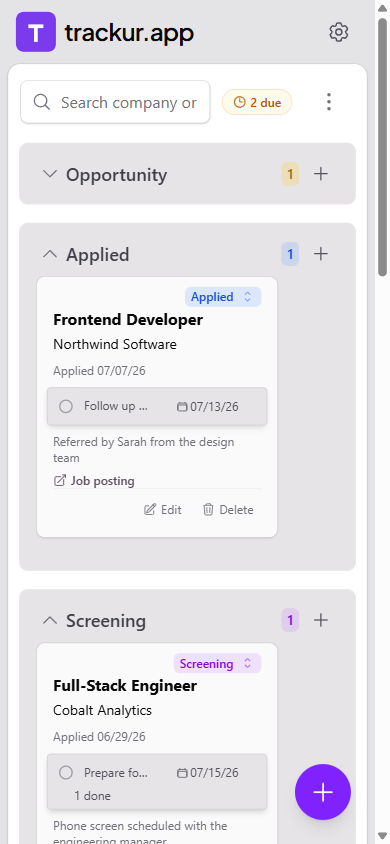
On a phone, the board rotates: the eight stages stack vertically, so you scroll down to move between stages instead of across. Within a stage, job cards scroll horizontally — each card takes about 80% of the screen width, so the next card peeks in from the right, and swiping snaps from card to card. Stages with two or more cards show a row of dot indicators below the cards; tap a dot to jump straight to that card. Empty stages read "No jobs".
Stage rows collapse just like desktop columns: tap a stage's name or chevron to shrink it to its header row, and tap again to expand. The Opportunity stage starts collapsed by default, and your collapse choices are remembered on that device. Every expanded stage header also has a + button that opens the Add Job panel with that stage preselected.
Changing a job's stage
Drag-and-drop doesn't work on touch screens, so mobile cards get something desktop cards don't: the stage badge in the card's corner is actually a dropdown. Look for the small up/down chevron next to the stage name — tap the badge, pick a new stage from the list, and the job moves immediately with a "Job moved to {stage}" toast.
Two ways to move a job
Tap the stage badge on a board card for a quick move, or open the Edit panel and change the Stage field there. Both do the same thing.
Adding jobs
A round + button floats at the bottom-right of the screen. Tapping it opens the Add Job panel full-screen; the button hides itself while the panel is open and returns when it closes. See Adding your first job for the form itself.
The toolbar
The mobile toolbar reduces to a full-width search box ("Search company or role...") plus a three-dot overflow button. The overflow menu contains:
- Filter Stage — a dropdown with All Stages plus each stage. Only shown in Table view, since the board already displays every stage.
- View — the Board / Table / Stats toggle. Choosing a view closes the menu.
- Show archived jobs (or Show active jobs) — see Archiving & deleting.
- Export CSV and Import CSV — see Exporting to CSV and Importing from CSV.
If any jobs have steps due, the amber "{N} due" pill appears in the toolbar here too — see Next steps & due dates. The desktop Clear button is hidden on mobile; delete the search text yourself, or use the Clear filters button that appears when nothing matches.
The gear menu
On mobile, a single gear icon in the header replaces the desktop user menu and the header's dark-mode switch. Its menu shows your email under "Signed in as", followed by:
- A dark mode toggle row (labeled Dark mode or Light mode), with a switch. Tapping it changes the theme without closing the menu.
- Settings, Manage Resumes, Privacy Policy, and Sign out — the same items as the desktop user menu.
Table view on mobile
The table becomes a vertical list of tappable cards that open the Edit panel — see Table view for what the cards show and how sorting works on mobile.
Panels and toasts
The Add Job, Edit, Manage Saved Resumes, and Settings panels all take over the whole screen on mobile (on desktop they slide in from the right). Close them with the X button in the header — the dimmed backdrop you'd tap on desktop usually isn't visible when the panel is full-width.
Toasts appear at the top-center of the screen and dismiss after 4 seconds. On desktop, hovering a toast pauses its timer; touch screens have no hover, so on mobile a toast always dismisses after 4 seconds unless you tap its X first.